







How to Set Up OpenRun Pro 2 EQ in the Shokz App

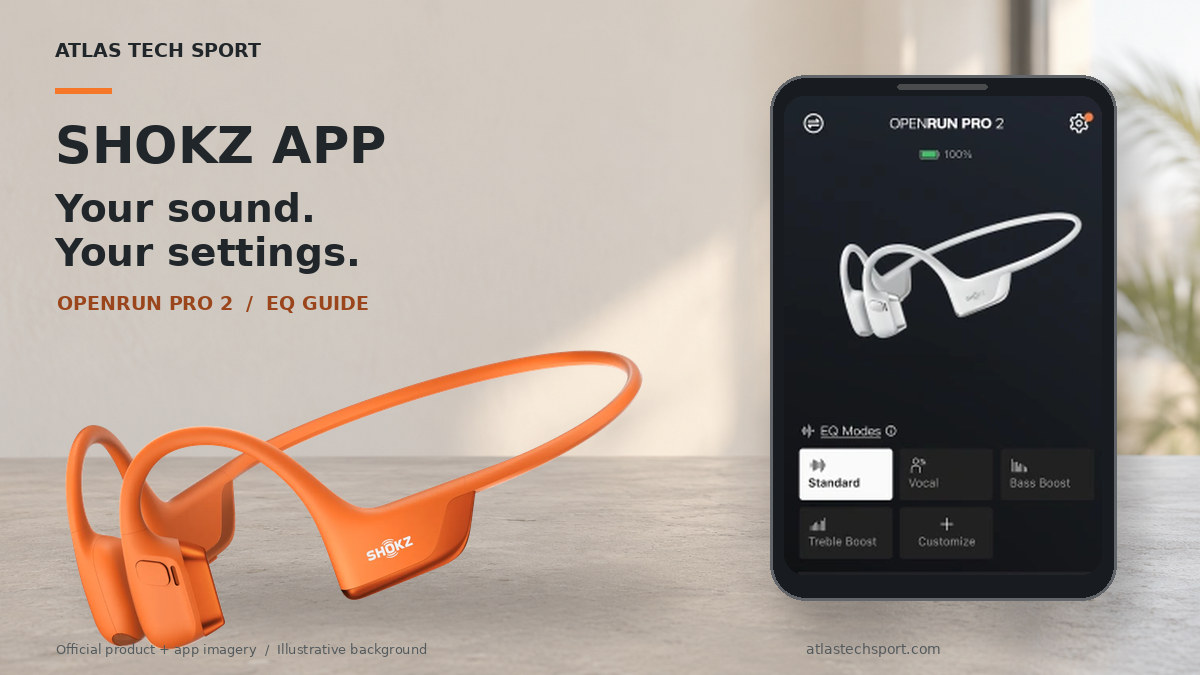
Your OpenRun Pro 2 may already be paired with your phone, but its default sound is only a starting point. A music playlist and a spoken-word podcast can benefit from different EQ choices.
This guide shows you how to use the Shokz app with OpenRun Pro 2, compare presets and adjust a personal sound profile. Set it up while stationary before your next run or gym session in Muscat.
Instructions checked against manufacturer documentation on 26 October 2026. Menu wording and available features can differ by app version, language, region and firmware. This is a documentation-based tutorial, not a hands-on app test.
Before You Start
Use the Shokz app linked from the manufacturer’s official app page. OpenRun Pro 2 is explicitly supported on both Android and iOS; features offered for other Shokz products should not automatically be assumed to apply to this model.
For iPhone, the Oman App Store listing currently requires iOS 15.5 or later and lists version 6.1.6. On Android, check the official Google Play listing on your phone for current device compatibility. Do not expect both platforms to have identical version numbers or screens.
Have your headphones charged, turn on Bluetooth and choose one familiar track for comparing settings.
Step 1: Connect OpenRun Pro 2 to Your Phone
If audio already plays through your headphones, continue to Step 2. For a first connection:
- Start with the headphones switched off.
- Hold Volume + until the pairing prompt sounds and the indicator alternates red and blue.
- Open your phone’s Bluetooth settings.
- Select OpenRun Pro 2 by Shokz.
Then open the Shokz app and confirm it recognises your headphones. Bluetooth audio pairing and recognising the device inside its companion app are separate checks. See the official user guide.
Step 2: Find the EQ Controls
With OpenRun Pro 2 connected, locate the sound-mode controls on its device page.
Shokz’s published interface image labels this area EQ Modes. Its newer written app guide uses EQ Settings. Follow the EQ control visible in your installed version rather than expecting identical wording.
Keep your test track playing at a comfortable volume so you can hear the effect of each selection. Shokz’s app sound guide confirms this connected-device workflow.
Step 3: Compare the Main Presets
Start with Standard, then compare the other available options using the same audio passage.
| Preset | What it changes | A useful comparison |
|---|---|---|
| Standard | Balanced tuning | A mixed music playlist |
| Vocal | Greater emphasis on voice-related frequencies | A podcast or audiobook |
| Bass Boost | More emphasis on low frequencies | Music with a strong beat |
| Treble Boost | More emphasis on high frequencies | A track where you want to compare brighter detail |
These are starting points for listening, not a universal ranking. Choose the sound you prefer without repeatedly raising the volume.
What About Classic and Volume Boost?
Shokz’s current US documentation also lists Classic and Volume Boost, alongside the original presets and two custom profiles.
Classic switches off the air-conduction driver for bone-conduction-only playback. Shokz notes that it can produce stronger vibration and may consume more power. Volume Boost increases the maximum output level.
Use these modes only if your installed app offers them. Their appearance in US documentation does not confirm that every Oman installation will display the same options. Official explanation of the additional modes.
Step 4: Adjust a Custom EQ Profile
The OpenRun Pro 2 product documentation confirms two custom EQ profiles. Its published app image shows a Customize control.
- Open Customize in the EQ area.
- Use the frequency controls displayed in your version to make a small adjustment.
- Replay the same section of your test track before changing another control.
- Complete any confirmation requested by the app, then return to the EQ overview and check that your intended profile is selected.
The reviewed documentation does not establish one universal label for the final save or confirmation control, so this guide does not invent a button name.
A practical first experiment is to change one frequency control at a time. Avoid pushing every control upwards: that makes it harder to understand which adjustment improved the result.
Step 5: Test Your Choice Before Training
Compare your custom profile with Standard using the same short audio passage at a similar perceived loudness. Try a spoken recording as well if you regularly listen to podcasts.
Notice whether voices remain clear, bass sounds comfortable and the headset feels different against your cheekbones. If a change sounds worse, move back towards your starting setting.
For outdoor use in Oman, assess your surroundings before playing audio. Open-ear construction does not guarantee that traffic or other hazards will be heard. Do not use extra volume to overcome a situation that requires your full attention.
If a Mode or Setting Is Missing
Check these in order:
- Confirm that the app identifies the headset as OpenRun Pro 2.
- Check for an app update through its official store.
- Check the headset’s firmware information in the app and follow any update instructions shown.
- Review relevant Bluetooth permissions if audio works but the app cannot recognise the device.
If the difference remains, note your phone platform, app version, firmware and the missing mode before contacting support. A screen from another model or region is not proof that your installation is faulty.
Useful Physical Controls After Setup
You can switch EQ without handling your phone: while music is playing, hold Volume + and Volume − together until you hear a beep.
The OpenRun Pro 2 user guide also documents these music controls:
| Action | Multifunction button |
|---|---|
| Play or pause | Click once |
| Next track | Double-click during playback |
| Previous track | Triple-click during playback |
These are documented controls, not instructions for remapping buttons. The sources reviewed do not confirm an OpenRun Pro 2-specific button-reassignment workflow. See the manufacturer’s controls guide.
Frequently Asked Questions
Do I need the app every time I listen?
No. OpenRun Pro 2 can operate without the app. The app provides access to EQ customisation and other supported settings. The headphones also have a physical EQ-switching shortcut.
Which EQ should I try for podcasts?
Start by comparing Vocal with Standard. Keep the same recording and a similar listening level so you can judge clarity rather than simply choosing the louder result.
Why do some guides show fewer EQ modes?
Shokz originally documented four presets and two custom profiles, then added Classic and Volume Boost in later guidance. Region and software differences can affect the available interface.
Can I use instructions for OpenRun or OpenFit instead?
Do not assume their app support, controls or sound options match OpenRun Pro 2. Use the documentation for the exact product name.
Is there one best custom EQ curve for every workout?
No single curve suits every listener, recording and environment. Small, controlled changes are a more useful starting point than copying unverified frequency values.
Explore Shokz headphones in Oman, see the OpenRun Pro 2 product page, or contact Atlas Tech Sport in Muscat for help identifying your model before following the guide.