







How to Import a GPX Route into the iGPSPORT App and Send It to BiNavi

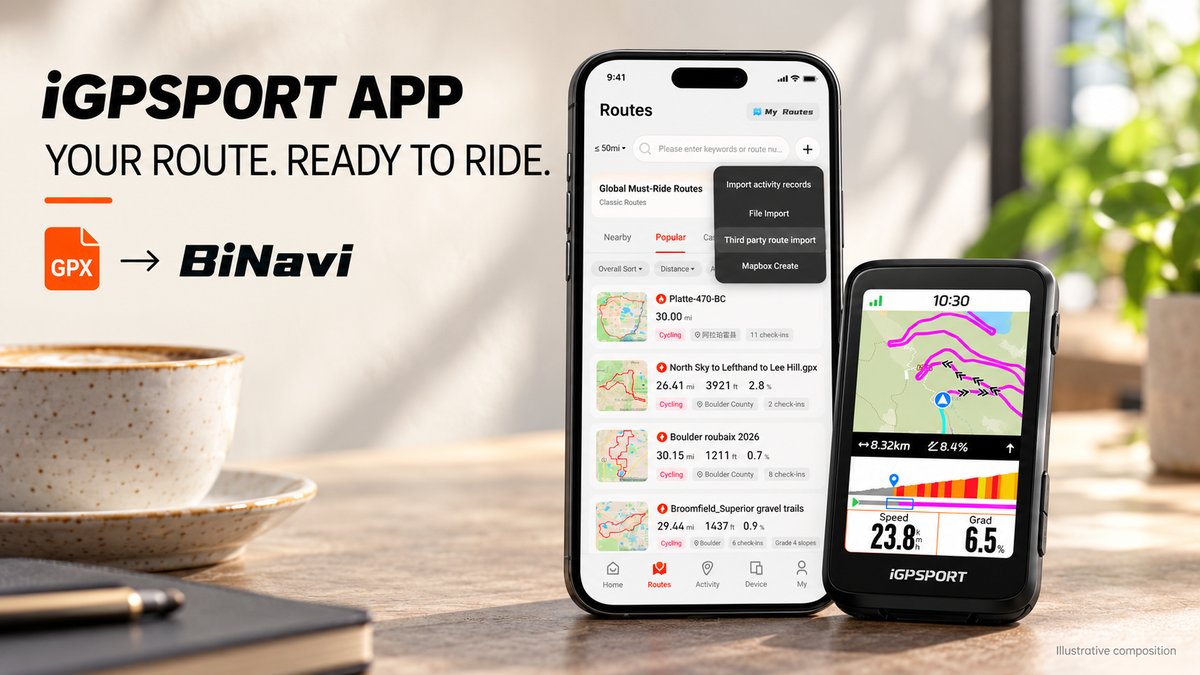
Someone shares a cycling route for your next ride in Muscat. You can see the file on your phone—but how do you get it onto your bike computer?
The process has three separate stages: import the route into the iGPSPORT app, transfer it to the computer, then open it on the device. Seeing a route on your phone does not confirm that it has reached your handlebars.
This guide explains the workflow for iGPSPORT BiNavi, using a GPX file you already have.
Documentation checked on 24 October 2026. This is a documentation-based tutorial; menu wording can change with app language, version and device firmware. The cover is an illustrative composition.
Before You Start
Have these ready:
- Your BiNavi and the phone normally paired with it.
- The iGPSPORT app, signed into your account.
- A GPX route file saved somewhere accessible on your phone.
- An internet connection and Bluetooth enabled.
- Enough time to complete the transfer before leaving.
Use the manufacturer’s official app download page to find the appropriate installation route. The Android store currently names the application iGPSPORT Ride, while the Apple listing uses iGPSPORT.
Check Your Device’s Navigation Support
This tutorial uses BiNavi as its device example. Do not assume that every computer connecting to the app supports the same maps, route guidance or rerouting functions.
The manufacturer’s BiNavi user manual documents importing GPX or TCX routes through the app and sending them to the computer.
Step 1: Confirm That BiNavi Is Connected
Open the app’s Device area and check that your BiNavi is connected.
For a first pairing, the BiNavi manual gives this sequence:
Add Device → Cycling Products → select BiNavi → Connect
Accept the pairing request when prompted. Start pairing inside the iGPSPORT app rather than only through the phone’s Bluetooth settings. Android users should also check the permissions requested by the app; the manual specifically mentions location permission.
If you already use the computer successfully, keep the existing pairing.
Step 2: Import Your GPX File
Open Routes in the app’s bottom navigation, then tap the + button near the upper-right corner.
Choose File Import and select the GPX file from its saved location on your phone. These labels are visible in a genuine iGPSPORT app screenshot published in Ride with GPS’s official integration guide.
The phone’s file selector may look different on Android and iPhone. Navigate to wherever you saved the file rather than expecting an identical screen on both platforms.
Import the Route File, Not Its Preview
A screenshot of a route is useful for discussion, but it is not a GPX file.
If someone sends you a map image, ask for the downloadable route file. Also check that the downloaded item is the route itself rather than a webpage containing a download link.
Step 3: Review the Imported Route
Open the imported route and examine its course before transferring it.
Check:
- Does it start where you intend to begin?
- Does it finish at the correct location?
- Is it the intended direction around the loop?
- Does it contain unexpected detours or straight-line gaps?
- Does the distance fit the ride you planned?
For a group ride in Muscat, compare the start with the actual meeting point. A familiar place name may refer to a different entrance or a nearby road.
A route line alone does not confirm road access, surface suitability or current conditions. Review unfamiliar sections before relying on them.
If the app offers a route-name field, use something recognisable, such as Friday Muscat Loop, rather than leaving several similarly named files in your library.
Step 4: Send the Route to BiNavi
With BiNavi connected, open the saved route and use the app’s route-transfer control to send it to the computer.
The manufacturer confirms this transfer workflow, but the sources reviewed do not establish one universal English label for the transfer button across current app versions. Follow the control shown in your installed version rather than looking for an assumed button name.
Keep the phone and computer nearby until the operation finishes.
The useful confirmation is the route appearing on BiNavi—not simply remaining visible in the phone app.
Step 5: Open the Route on the Computer
On BiNavi, open Navigation and find the transferred route in its route list.
The manufacturer’s manual calls this selection Route Navigation in its instructions. Select your route, inspect the overview and elevation profile, then choose Navigate.
Before moving, check that the displayed course matches the route you intended to load. Complete your normal activity-recording start procedure as well; choosing a navigation route should not be your only recording check.
If the Route Does Not Appear
Check the Device Connection
Return to the app’s Device area and confirm that BiNavi is connected. A route saved to your account may still need to be transferred to the computer.
Check the Selected File
Confirm that you selected the intended GPX file. Several downloads with similar names can make it easy to import an older version.
Separate Route Problems From Map Problems
An incorrect course and missing background-map detail are different issues.
First confirm that the correct route reached the device. If the course is present but the map display is incomplete, consult the support instructions for your exact model and map package.
Note Versions Before Contacting Support
Record your phone platform, app version and device firmware version. Include the route filename and a screenshot of the error so support can identify where the process stopped.
Avoid deleting your account or repeatedly removing the pairing as an initial troubleshooting step.
A Short Check Before Your Oman Ride
Open the route on the computer while you still have time to resolve a problem.
Check the meeting point, route direction, battery level and expected duration. For a group ride, confirm everyone is using the same route revision.
Make your first transfer test on a familiar local ride rather than immediately before a long event.
Frequently Asked Questions
Can BiNavi receive GPX routes through the iGPSPORT app?
Yes. Its manufacturer manual documents importing GPX and TCX routes into the app and sending them to the device.
Is importing a route the same as sending it to the computer?
No. Importing adds it to the app. Check the computer’s route list to confirm the transfer succeeded.
Can I create routes directly in the app?
The developer’s Android listing confirms route creation. A genuine published app screenshot also shows Mapbox Create under the Routes + menu. That editor is a separate workflow from importing an existing GPX file.
Will every iGPSPORT computer show the same navigation options?
Do not assume so. This guide’s device instructions are for BiNavi; check the manual for your exact model.
Does BiNavi voice guidance come from the computer itself?
The official BiNavi product page states that navigation voice prompts use the phone’s speaker and require the computer to remain connected to the iGPSPORT app.
Can I send a route screenshot instead of a GPX file?
A screenshot does not contain the route data needed for this import workflow. Obtain the actual route file.
Explore Atlas Tech Sport’s iGPSPORT cycling computers in Oman, read our iGPSPORT and Garmin bike computer comparison, or contact the team in Muscat if you need help identifying your model before following a tutorial.