







How to Create an Interval Workout in the COROS App and Send It to Your Watch

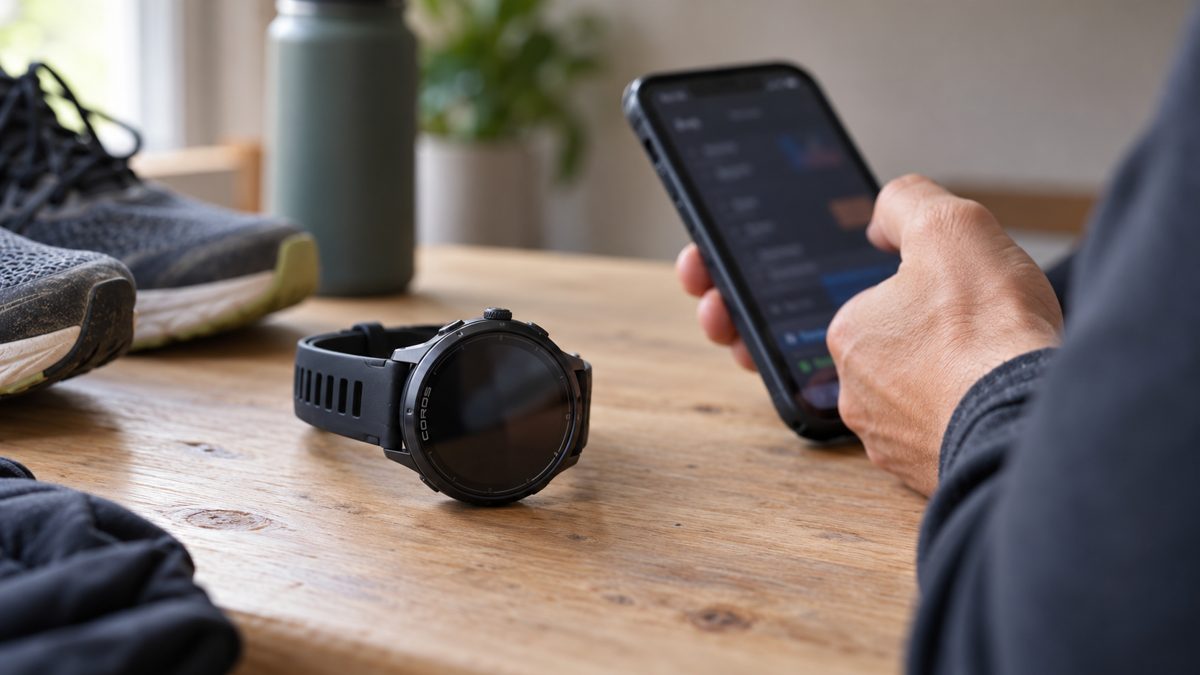
An interval session becomes easier to follow when its stages are already on your watch. Instead of repeatedly checking a timer, you can prepare the session beforehand and keep the instructions on your wrist.
This tutorial helps COROS owners in Muscat and across Oman complete one task: create a reusable running workout and transfer it to their watch.
Instructions checked against official COROS documentation on 19 October 2026. English menu labels are used below. The documentation does not identify a specific Android or iOS app build, so screen appearance may differ. The cover is an illustrative image, not an authentic app screenshot.
Before You Begin
Have your paired watch and phone nearby. Write down the session you want to enter before opening the workout builder.
For this walkthrough, we will use the following illustrative software example, rather than a personalised training prescription:
| Stage | Duration | Repetitions |
|---|---|---|
| Warm-up | 10 minutes | 1 |
| Running interval | 1 minute | 4 |
| Recovery | 2 minutes after each interval | 4 |
| Cool-down | 5 minutes | 1 |
The total is 27 minutes, including recovery after the final running interval. Use your own coach-approved session when preparing a workout you intend to complete.
Step 1: Open the Workout Builder
In the COROS app, open Profile → Workout Library → Create, then choose the running workout type.
Give the session a recognisable name, such as Practice — 4 × 1 Minute. COROS’s current help article uses Create; its older coaching guide illustrates a + control. Follow the control shown in your installed version.
Make the Name Useful
A descriptive name helps distinguish this session from similar workouts later. Include the repeat count or main interval duration rather than saving several sessions as “Run”.
Step 2: Build the Stages
Select Add Exercise. Add a Warm Up, a Training stage, a Rest stage and a Cool Down.
For each stage, choose Time and enter the duration from your plan. Group Training and Rest by dragging one onto the other, then set the group to four repetitions.
The builder also offers an Interval option for running. This walkthrough uses separate Training and Rest stages so the repeated pair is explicit. See COROS’s official workout-builder instructions.
Check the Repeated Block
The intended order is:
Warm-up → four running/recovery pairs → cool-down
Keep the warm-up and cool-down outside the repeated group. Otherwise, a small editing mistake could create a very different session.
Step 3: Choose Targets Deliberately
Duration answers how long a stage lasts. Intensity answers how hard it should be.
COROS supports targets such as pace and heart rate. Its coaching guide distinguishes fixed targets from relative targets that depend on your fitness settings. For the practice example, Not set avoids adding an arbitrary pace or heart-rate requirement.
Before entering a real session, confirm the intended intensity with your training plan. Do not copy another runner’s heart-rate numbers simply because they appear in an example screenshot.
Step 4: Save and Transfer
Tap Save, then select Send to Device on the following screen.
Before leaving home, confirm that the named workout is actually available on the watch. Saving a workout in the app library and checking its arrival on the device are separate steps.
Step 5: Find It on the Watch
For a workout transferred without a scheduled date, open Workouts from the watch’s main activity menu.
A workout assigned to a particular calendar date follows a different route: open the matching activity on that date to receive the scheduled-workout prompt.
COROS states that structured workouts are supported across its watches. Its documented Kiprun 500/900 restrictions concern Strength and running workouts using Effort Pace or Power; this example uses timed running stages. See the official guide to following workouts.
Check Stage Changes Before Starting
Review Auto Advance:
- On: stages advance automatically.
- Off: use Back/Lap to move forward.
Also check Finish Pause, which controls whether recording pauses after the last stage.
For your first test in Muscat, choose a familiar route where you can check prompts without complicated junctions. Complete the setup before moving.
Frequently Asked Questions
Why can’t I find the workout under today’s scheduled session?
An undated workout belongs in Workouts. A dated workout is accessed through its scheduled activity on the selected day.
Do I need to enter a pace target?
No. The builder includes Not set as an intensity option.
Is this a recommended interval plan for every runner?
No. The 27-minute example demonstrates the software workflow. Your actual durations, recoveries and intensity should match your training needs.
Why does the app look different from the screenshots?
COROS’s official materials show different control presentations. Use the documented function and check the current label rather than expecting every screen to look identical.
Explore COROS sports watches in Oman, or contact Atlas Tech Sport in Muscat for product guidance.